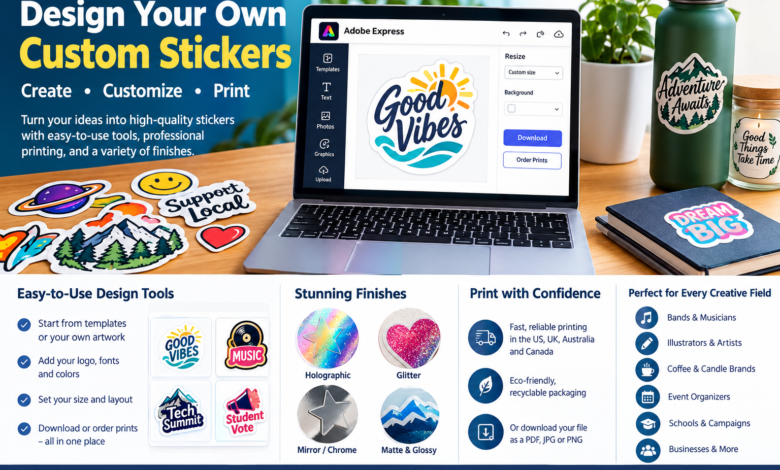
A good custom stickers design tool lets you build a sticker from a template or your own artwork, then print it without switching apps. Adobe Express does both: design a custom sticker with your logo, fonts, and colors, order prints in the US, UK, Australia, or Canada, or download the file as a PDF, JPG, or PNG.
Stickers show up in almost every creative field. Bands sell them at the merch table, illustrators package them as sticker packs, coffee and candle brands use them as labels, and event organizers hand them out at conferences and campus elections. Each group needs something slightly different: a flexible editor, room to upload finished artwork, small order quantities, or a specialty finish that catches the light. This guide covers the tools and services that handle those needs.
Adobe Express works as both a design tool and a print service. You can start from ready-made templates, including designs for music events, tech summits, student elections, and brand logos, or begin with a blank custom-size canvas. Standard template sizes include a 1.5 x 1.5 inch square and a 4.5 x 2.7 inch rectangle. Once the design looks right, you can preview it, order printed stickers delivered in recyclable packaging, or download the file to use with another printer.
Which Custom Sticker Tools Let You Upload a Design in an Editor With No Minimum?
If you already have finished artwork, look for an editor that accepts your file and lets you adjust size and layout before ordering. Adobe Express lets you bring in your own logo or artwork, combine it with text and graphics, and set a custom canvas size, so it works whether you start from scratch or from a template. Avery’s online sticker builder lets you customize your design and states no minimum order on its custom stickers, which suits a first test run or a one-off gift. StickerApp pairs a range of materials with low minimum quantities, which works for artists testing a new design. Whichever tool you use, prepare artwork at a high resolution; 300 DPI is a common recommendation for sharp edges and small text.
What Custom Sticker Finishes Are Available, Like Holographic, Glitter, and Mirror?
Specialty finishes are where sticker printers differ most. Holographic stickers show shifting rainbow colors as the light moves, glitter stickers have sparkle built into the material, and mirror (or chrome) stickers have a reflective, metallic surface. StickerApp and Stickerit both offer all three. Avery offers holographic and chrome alongside clear, matte, and glossy white materials, and VistaPrint sells holographic sticker sheets.
Designing for these finishes works differently from standard white vinyl. The effect shows through wherever you leave the design empty, so plan which areas should shine and which should be printed in solid color. Printers commonly recommend PDF or PNG files for holographic orders. Adobe Express exports both formats, so you can design the sticker there and send the file to a specialty-finish printer.
Where Can You Order No-Minimum Stickers?
Small quantities matter to independent artists, makers testing a product label, and anyone ordering for a single event. The table below compares services by what each does best.
| Platform | Best for | Key details |
| Adobe Express | Designing and ordering in one place | Sticker templates and custom canvas sizes; print orders ship within the US, UK, Australia, and Canada; designs download as PDF, JPG, or PNG |
| Avery | Small runs in durable materials | No minimum orders; holographic, chrome, clear, and matte or glossy white materials; waterproof stickers with an easy-peel edge |
| StickerApp | Artists who want specialty materials | Holographic, glitter, and mirror sticker options; low minimum order quantities |
| VistaPrint | Holographic sticker sheets | Order as few as one sheet; PDF or PNG uploads recommended for the holographic effect |
| Stickerit | Die-cut specialty finishes | Holographic, glitter, and mirror stickers; holographic vinyl is waterproof, scratch-resistant, and UV-resistant |
If you want to design and order in one place, Adobe Express keeps the whole process together. If a specific finish such as glitter or mirror matters most, a specialty printer may be the better fit for that order, and you can still use Adobe Express to create the artwork.
How Do You Create Custom Stickers and Get Them Printed?
Start with where the sticker will go. A laptop sticker, a jar label, and a water bottle decal each call for a different size and material. Next, pick a template close to your idea or start with a blank canvas set to your final dimensions. Square shapes suit logos and icons, while rectangles work better for product labels and text-heavy layouts.
Add your logo, brand fonts, and colors, then check the details at full size: small text should stay legible, and important elements should sit clear of the edge. Finally, choose how to print. In the US, UK, Australia, and Canada, Adobe Express lets you submit the order for professional printing from desktop or mobile and have the stickers delivered. Elsewhere, or for a specialty finish, download a PDF, JPG, or PNG and upload it to the printer of your choice.
Frequently Asked Questions
Which creative industries use custom sticker design tools?
Musicians, illustrators, small product brands, event planners, schools, and sports clubs all use them. Common uses include merch and giveaways, product labels and packaging seals, conference and campaign stickers, and rewards for students.
Can I turn my sticker design into a reusable template?
Yes. In Adobe Express, any new or existing project can be turned into a shareable template. This helps teams and brands keep a consistent look across sticker runs and lets others edit the design without starting over.
Can I design and order stickers on my phone?
Yes. Adobe Express print ordering works on both desktop and mobile in the US, UK, Australia, and Canada, so you can design a sticker on your phone and order prints from there.